

Google Cloud Platform Deployment Guide
DDN Infinia is a distributed data platform designed for extreme performance and scalability. DDN Infinia, running on Google Cloud Platform’s (GCP) compute engine instances, can handle petabytes of data and billions of objects needed for demanding applications like artificial intelligence, deep learning, and high-performance computing (HPC).
DDN Infinia delivers the following capabilities:
- Elastic, distributed data cluster
- S3-compatible object store
- High data durability
- Multi-tenancy with role-based access control
Google Cloud users can deploy DDN Infinia from the Google Cloud Marketplace using standard GCP tools.
Audience
This page is intended for users and system administrators who are responsible for deploying, managing, and maintaining DDN Infinia software on Google Cloud Platform (GCP). The level of content presented assumes that users have a strong understanding of Google Cloud Platform and have working knowledge about compute engine, storage, network configuration, and system administration within a Linux environment. The user must also be familiar with the administration of DDN Infinia.
Prerequisites
The following are the prerequisites for deploying and configuring DDN Infinia on Google Cloud Platform:
-
GCP Account: Ensure that you have a valid GCP account with the necessary permissions.
-
GCP Resources: Verify that the following GCP APIs are enabled:
- Compute engine
- Cloud deployment manager
-
GCP IAM Roles: To execute the deployment, you must have a service account with the following project roles:
- roles/compute.admin
- roles/iam.serviceAccountUser
If you are using a shared VPC, the following role is enabled on the shared VPC host project.
- roles/compute.networkAdmin
-
DDN Infinia Activation Token: A valid activation token to configure the DDN Infinia cluster.
DDN Infinia Solution Architecture
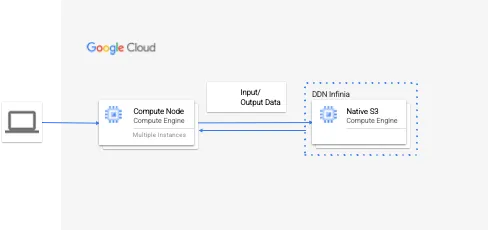
The following diagram illustrates the architecture of the DDN Infinia Data platform on Google Cloud.
Supported Instances
The following are the specifications of the compute engine instance that is supported with DDN Infinia 2.4.1:
Before You Start Deployment of DDN Infinia
Before launching the automated deployment of DDN Infinia from the Google Cloud Marketplace, verify that you have the following in place:
-
DDN Infinia Activation Token: Contact DDN support (email: gcp@ddn.com) to obtain a valid activation token for DDN Infinia.
-
DDN Infinia Cluster Sizing: Determine the desired capacity and performance to be provisioned for the DDN Infinia cluster. The DDN Infinia cluster uses a minimum of 7 VM instances and scales to over 100 PB, depending on VM instance availability and GCP quota assigned to the project in which DDN Infinia cluster will be deployed.
-
The following are the capacity and performance metrics per VM instance:
-
Capacity per VM Instance: 9 TB
-
Network throughput per VM Instance: 4 GB/s
-
Minimum Cluster Size: 7 VM Instances
- Starter Capacity: 9 TB x 7 = 63 TB
- Starter Throughput: 4 GB/s x 7 = 28 GB/s
-
Minimum unit of cluster expansion: 1 VM Instance implying:
- Min Unit of capacity expansion: 9 TB
- Min Unit of network throughput expansion: 4 GB/s
-
-
Based on desired storage capacity, the DDN Infinia cluster automatically provisions the required number of VM instances (subject to availability of GCP quota in the project). The following are a few examples:
- 63 TB Deployment: 7 VMs, 28 GB/s total throughput.
- 108 TB Deployment: 12 VMs, 48 GB/s total throughput.
- 192 TB Deployment: 24 VMs, 96 GB/s total throughput.
- 1024 TB Deployment: 114 VMs, 456 GB/s total throughput.
-
User Inputs Required During Deployment
The following details are required during deployment:
- Desired usable capacity in the DDN Infinia cluster (as explained earlier).
- Enable/Disable cloud login and monitoring as desired.
- Network configuration details (for example, subnets, external IPs, and firewall settings).
Deploying and Configuring DDN Infinia on GCP
Before starting to deploy DDN Infinia on Google Cloud Platform, ensure the following prerequisites are fulfilled:
- Ensure you have a Google Cloud account. If you don’t have an account, follow instructions provided by Google to create an account.
- Ensure you have a valid DDN Infinia activation token that is required at the time of configuration of the DDN Infinia cluster.
For deployment of DDN Infinia on GCP, currently the maximum supported length for the instance name is 54 characters.
Procedure
To deploy DDN Infinia on GCP Marketplace, complete the following steps:
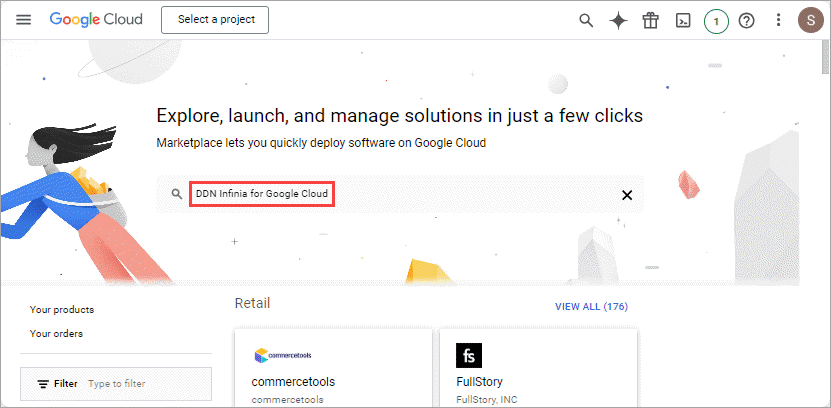
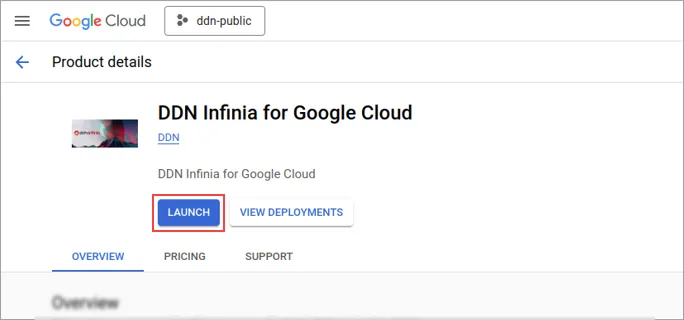
In the TERRAFORM tab, provide the details as shown in following table to create a DDN Infinia environment on Google Cloud Platform:
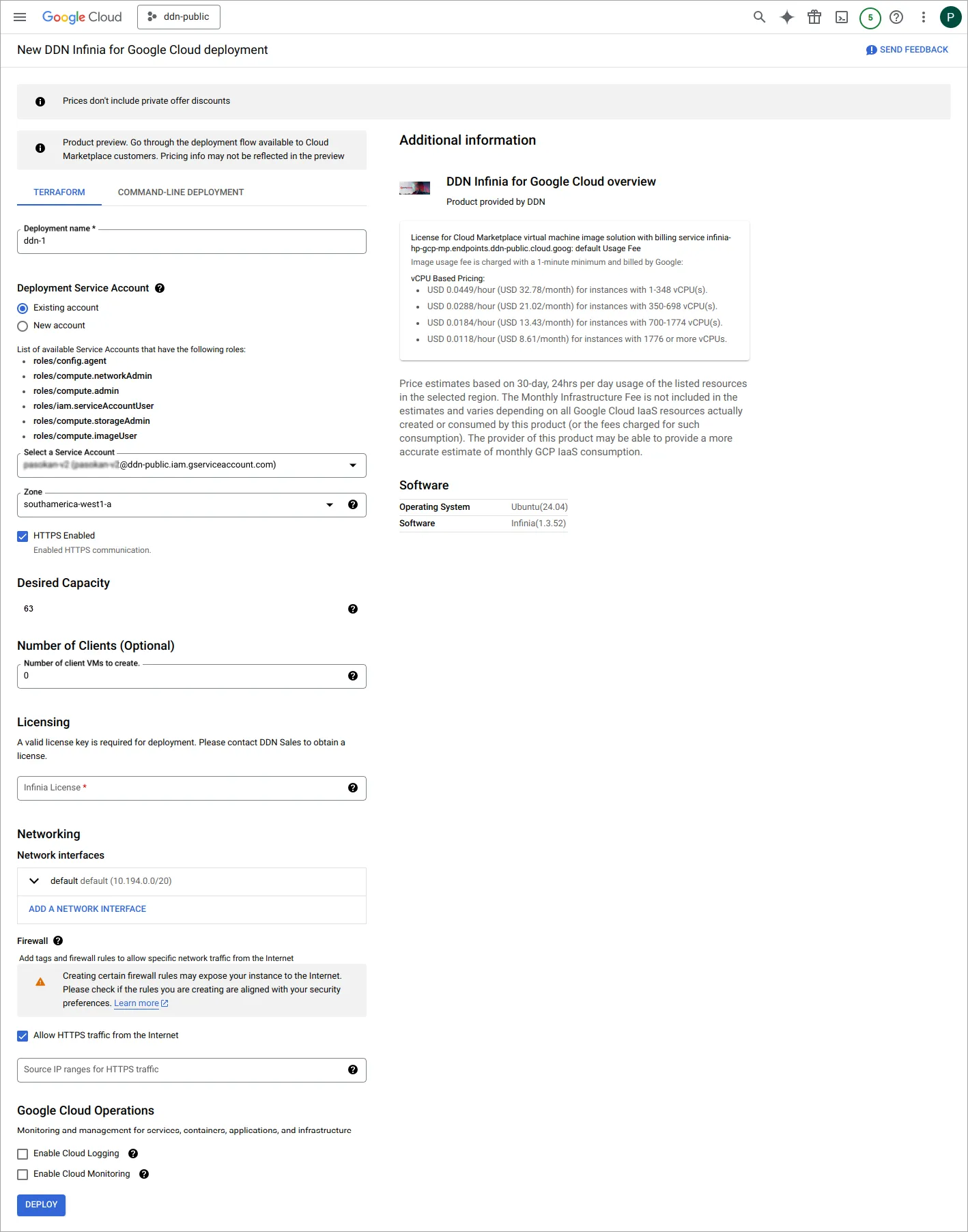
Wait for a couple of minutes for DDN Infinia for Google Cloud to deploy on GCP VMs. Note the First Instance Nat IP and Admin Password from the Outputs section in the DETAILS tab, to be used for cluster setup in next step.
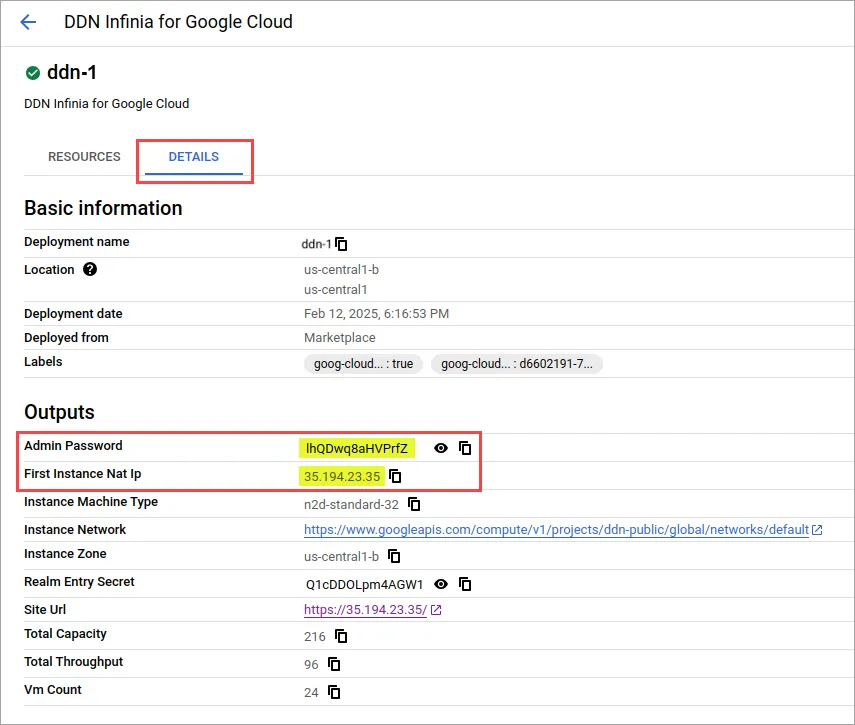
Use one of the following methods to setup cluster and login DDN Infinia:
To setup cluster and login using UI:
- Go to
https://{First Instance Nat IP}from the deployment outputs - Login with username: realm_admin, password: {Admin Password from deployment outputs}
- Follow the instructions in Initial Cluster Setup by using UI to setup cluster by using UI.
Or
To setup cluster and login using CLI:
- SSH to {First Instance Nat IP} from the deployment outputs
- Run
redcli user login realm_admin -p <Admin Password from deployment outputs> - Follow the instructions in Initial Cluster Setup by using CLI to setup cluster by using CLI.
Note that while creating DDN Infinia cluster using redcli cluster create command, you must pass -S flag with value false. This option disables subnet enforcement that allows different subnets in the GCP instance and also allows clients to connect from different instance, which is mandatory for deployment of DDN Infinia on GCP.
Post-deployment Configuration Details
Upon successful deployment of DDN Infinia on Google Cloud Platform, the following configuration parameters are provided as output:
admin_password: Password for admin.instance_machine_types: Machine types for all compute instances.instance_nat_ips: External IPs of all compute instances.instance_network: Network of the first compute instance.instance_self_links: Self-links for all compute instances.instance_zones: Zones for all compute instances.realm_entry_secret: Password for realm entry.site_url: Site URL of the first instance.total_capacity: Total capacity provisioned in TB.total_throughput: Total throughput provisioned in GB/s.vm_count: Total number of VMs provisioned.
After first login, change both the admin password and realm entry secret immediately to ensure security for your account.
For optimal performance, DDN Infinia uses local NVMe SSDs in VM instances on the Google Cloud Platform (GCP). Please beware of the following scenarios that could potentially degrade the performance or durability of the DDN Infinia cluster:
- Any reconfiguration of the DDN Infinia cluster to use other types of storage on GCP will render the cluster unavailable.
- If a host error occurs and compute engine cannot reconnect the instance to the local SSD disk within the recovery timeout (default is 1 hour), data may not be recoverable. If reconnection fails, the instance is restarted with a blank local SSD disk.
- Shutting down the guest operating system and forcing the instance to stop will result in data loss on local SSD disks.
- Configuring the instance to stop on host maintenance events or experiencing such an event will result in a data loss.
- Disabling the project billing will cause the instance to stop, leading to loss of data on local SSD disk.
Ensure proper configuration and regular data backup to prevent data loss in such scenarios.